 WA Folders
How to export a WhatsApp Web chat, and what ends up in the file
To export a WhatsApp Web chat, open it, click More options (the three dots), choose Export chat, then pick All messages or Custom date range, and WhatsApp saves the text as a ZIP file without media.
You're on https://web.whatsapp.com, you need a copy of one conversation (an order thread, a landlord chat, a group decision), and you're looking for an export button in the browser. WhatsApp's Help Center documents its own Export chat for the phone app and, on its Web tab, for WhatsApp Web too. This post covers both, then a way to do it with WA Folders in Chrome when you want a spreadsheet, an HTML page or Markdown.
Option 1: Export chat in the WhatsApp phone app
WhatsApp's help page "How to export your chat history" has steps for Android and iOS. For Android it says:
- Open the chat.
- Tap More options > More > Export chat.
- Tap Without media or Include media.
- Choose how to send it, for example by email or to a notes app.
For iPhone, use the iOS tab on the same help page.
The same page notes that Include media attaches the most recent media, and that the export can't be re-imported into WhatsApp because it's a text file, not a backup. If you need the media files themselves, start with the phone.
Option 2: Built-in Export chat on WhatsApp Web
The Web tab of the same WhatsApp help page (checked Oct 21, 2026) lists these steps: open the chat, click More options (the three dots) > Export chat, choose All messages or Custom date range, then click Export. The chat is saved as a ZIP file. Media isn't included, and view-once and disappearing messages aren't exported. If your WhatsApp Web menu shows Export chat, that's the quickest way to get a plain text copy without installing anything. Once you have the ZIP, here is how to open and read the exported chat.
If the export is missing older messages
WhatsApp's help page doesn't state a message limit for exports, so if a long chat comes out without its oldest part, export it in pieces with Custom date range on WhatsApp Web instead of All messages.
- Open the chat on https://web.whatsapp.com and click More options (the three dots) > Export chat.
- Choose Custom date range and pick the oldest stretch you need, for example the first year of the chat.
- Click Export and keep the ZIP file.
- Repeat with the next date range, starting where the last one ended, until you reach today.
- Open each file and check that its first and last messages match the dates you picked.
Two things the same help page says still apply to every piece: media isn't included in a WhatsApp Web export, and view-once and disappearing messages aren't exported. None of the files can be imported back into WhatsApp, so for a restorable copy use WhatsApp's own chat backup on your phone.
With WA Folders, a free export takes only the messages loaded on screen, so scroll up to the oldest message you need first. Pro's Load whole chat scrolls for you, and one export keeps the newest 5,000 loaded messages. For the full feature list, see export a WhatsApp chat to CSV, HTML, Markdown or JSON.
Option 3: Export from WhatsApp Web with WA Folders
We built WA Folders, a Chrome extension that runs only on https://web.whatsapp.com. It doesn't work in the phone app or the desktop app, it never sends messages, and it isn't affiliated with WhatsApp or Meta. Exports are built in your browser and saved as a normal download. Nothing goes to a WA Folders server; there isn't one.
Steps
- Install WA Folders: https://chromewebstore.google.com/detail/hahfpdlfieloofgjhanljbbnakinfhil?utm_source=site&utm_medium=guide
- Open https://web.whatsapp.com and open the chat you want.
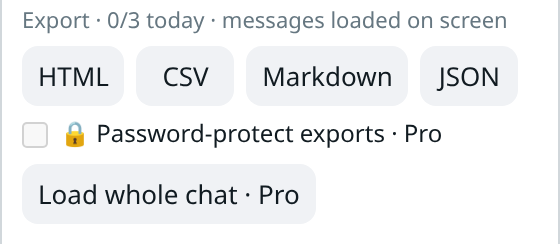
- In the WA Folders panel, under This chat, find the line that starts "Export". On the free plan it reads "Export · 0/3 today · messages loaded on screen".
- Click HTML, CSV, Markdown or JSON. The file downloads as
WhatsApp - <chat name> - <date>.<ext>, and the panel confirms how many messages it took, for example "Exported 6 messages that were loaded on screen. Use Load whole chat to include everything."
What the file contains (free plan)
A normal export covers the messages loaded on screen in that chat. WhatsApp Web loads a chat in pieces as you scroll, so to include older messages in a free export, scroll up in the chat first. As a technical limit on every plan, one export of the open chat keeps the newest 5,000 loaded messages.
Each message comes with the sender ("You" for your own messages), the time when WhatsApp shows it, and the text. In detail:
- Media is labelled in the transcript. Photos, videos, voice notes, files and stickers appear as [photo], [video], [voice message], [file] or [sticker]. A photo with a caption keeps both the label and the caption. On the free plan the media files themselves aren't in the export. In Pro 2.4.1, an export with media is a ZIP that also includes original files already kept in Files.
- Replies come out right. When someone replies to a message, the export shows their reply under their name. The message they quoted isn't copied in as if they wrote it.
- Group chats use the group name as the title, and each message has the member's name.
- Your private note for that chat, if you wrote one in WA Folders, is included in HTML, Markdown and JSON. CSV has four columns,
direction,time,senderandtext, and no note. - CSV is UTF-8 with a byte-order mark and Windows line endings, so Excel shows accents and emoji correctly. Where your system uses a comma as the decimal mark (Brazil, most of Europe, Indonesia), the columns are separated with semicolons so Excel splits them. Cells that start with
=,+,-or@get a leading apostrophe so a spreadsheet doesn't run them as formulas. - HTML looks like a chat, with your messages on the right, and opens in any browser. JSON has the chat name, the export time, your note and a list of messages.
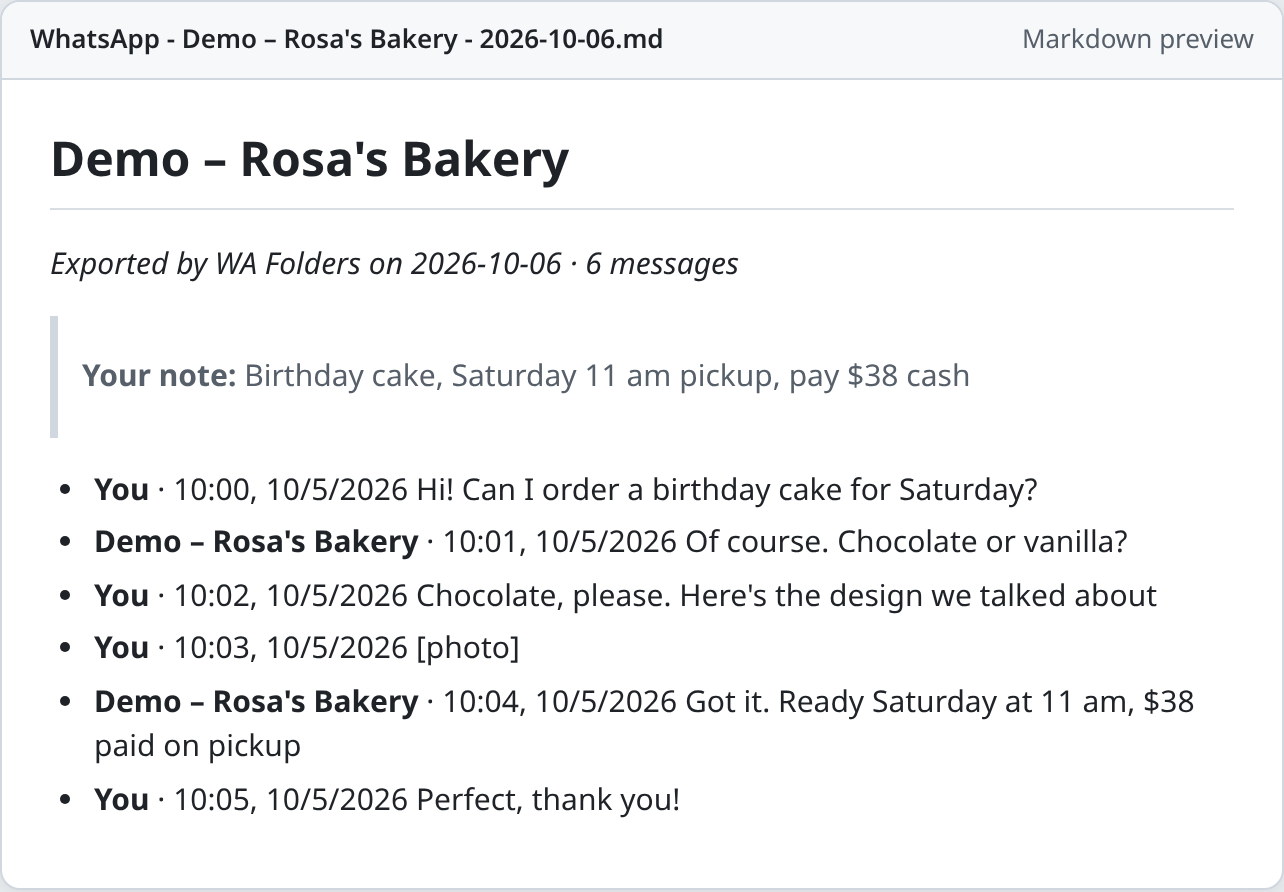
Here is a demo chat exported to Markdown, opened in a Markdown viewer. The bakery's reply quoted my earlier message, and the export shows it as the bakery's own text. The photo I sent shows as [photo].
The free plan allows 10 exports a day, counted on your computer, and they come back the next day. Each file counts as one. When you've used them, the buttons grey out and the panel says "You've used today's 10 free exports. More tomorrow, or get Pro for unlimited, whole-chat and password-protected exports." with an Upgrade link.
What Pro adds
Pro removes the limits for a one-time payment of $4.99.
- Unlimited exports. The counter shows how many you've made today, with no limit.
- Load whole chat. It keeps scrolling the open chat to the top so WhatsApp loads older messages, collects them as it goes, and stops when nothing new arrives for a few seconds or when you press Stop. A technical limit stops it at 20,000 messages. If you open another chat while it runs, it stops and collects nothing, so two chats never end up in one file. It can only collect what WhatsApp Web can load.
- Whole-folder export. One file for every chat in a WA Folders folder, with each chat's note. It warns you first: it opens each chat in turn, so WhatsApp marks them as read, and it takes what loads on screen for each one. One run opens up to 100 chats, a technical limit. It has a Stop button and reopens the chat you were in.
- Password-protected files. Tick "Password-protect exports" and type a password of at least 8 characters. The export becomes a single HTML file encrypted with AES-GCM, using a key derived from your password. It opens in any browser once you type the password. The password isn't saved anywhere, so if you lose it, the file can't be opened.
Which one to use
Use the phone's Export chat when you want the media files. Use Export chat on WhatsApp Web when a text file in a ZIP is enough, or when you only need a date range. Use WA Folders when you're already in the browser and want a readable HTML page, a spreadsheet you can filter, Markdown for your notes, or JSON for a script.
FAQ
Can I export a WhatsApp Web chat without an extension? Yes. WhatsApp's help page lists Export chat on the web: More options > Export chat, then All messages or Custom date range. It saves a ZIP file without media.
Why does my WA Folders export have fewer messages than the chat? A normal export only takes what's loaded on screen. Scroll up first, or on Pro use Load whole chat.
Does exporting notify the other person? No. The file is made in your browser. The one side effect is the Pro folder export, which opens each chat, and WhatsApp marks opened chats as read.
Can I import the file back into WhatsApp? No. WhatsApp's help page says its own export can't be re-imported, and a WA Folders export is a copy for reading too, not a backup.
Why is my WhatsApp export missing older messages? WhatsApp's help page doesn't give a reason or a message limit. On WhatsApp Web, export the chat in parts with Custom date range, then check the first and last date in each file.
Related: How to search WhatsApp Web messages, and why some don't show up explains how to find a message before you export it, and How to organize WhatsApp Web chats into folders covers the folders that whole-folder export works on.